Incident List Overview
The Incident List in Portal provides a lot of information on the list view with the ability to search and filter to find the right incident.
At the top of the list view are the available filters, making it easy for users to narrow down the incidents to the ones they are looking for.
Call Type: My Calls or All Calls
Unit: Input a unit to see incidents that the given unit was dispatched on
City: Enter a city where the incident occurred
Incident Status: Units have been Dispatched but not yet arrived on scene, Active incidents have units on scene and Cleared no longer has units on scene.
Report Status: Indicates the status of the Incident Reports
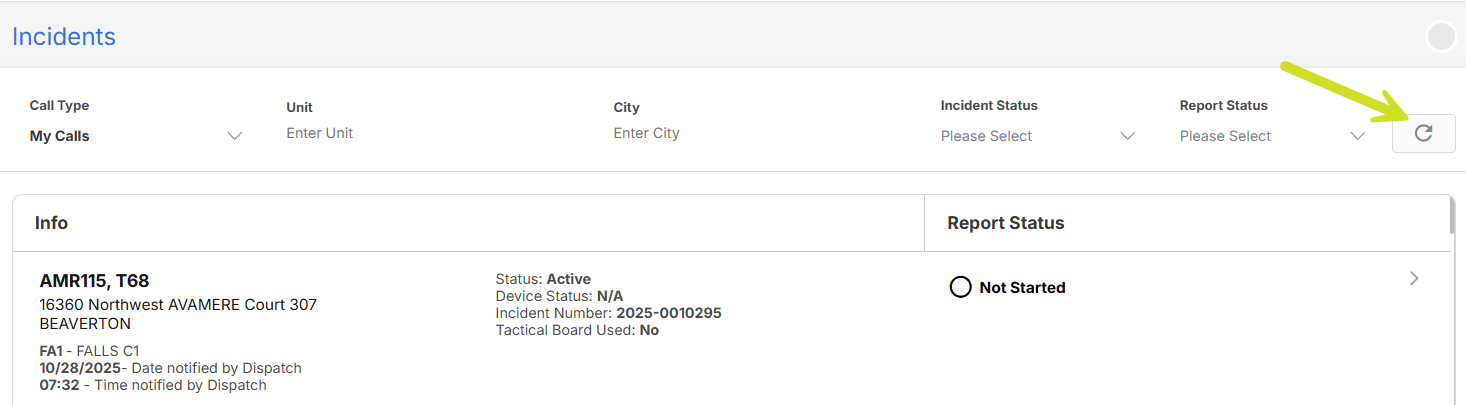
To the right of the filters is a REFRESH button. The refresh button will pull the latest incidents into your list without resetting the filters.
NOTE: The Unit and City filters are input boxes, after typing in a value either hit enter, tab or click on the screen for the filter to be applied
The Incident List contains a lot of information about each incident.
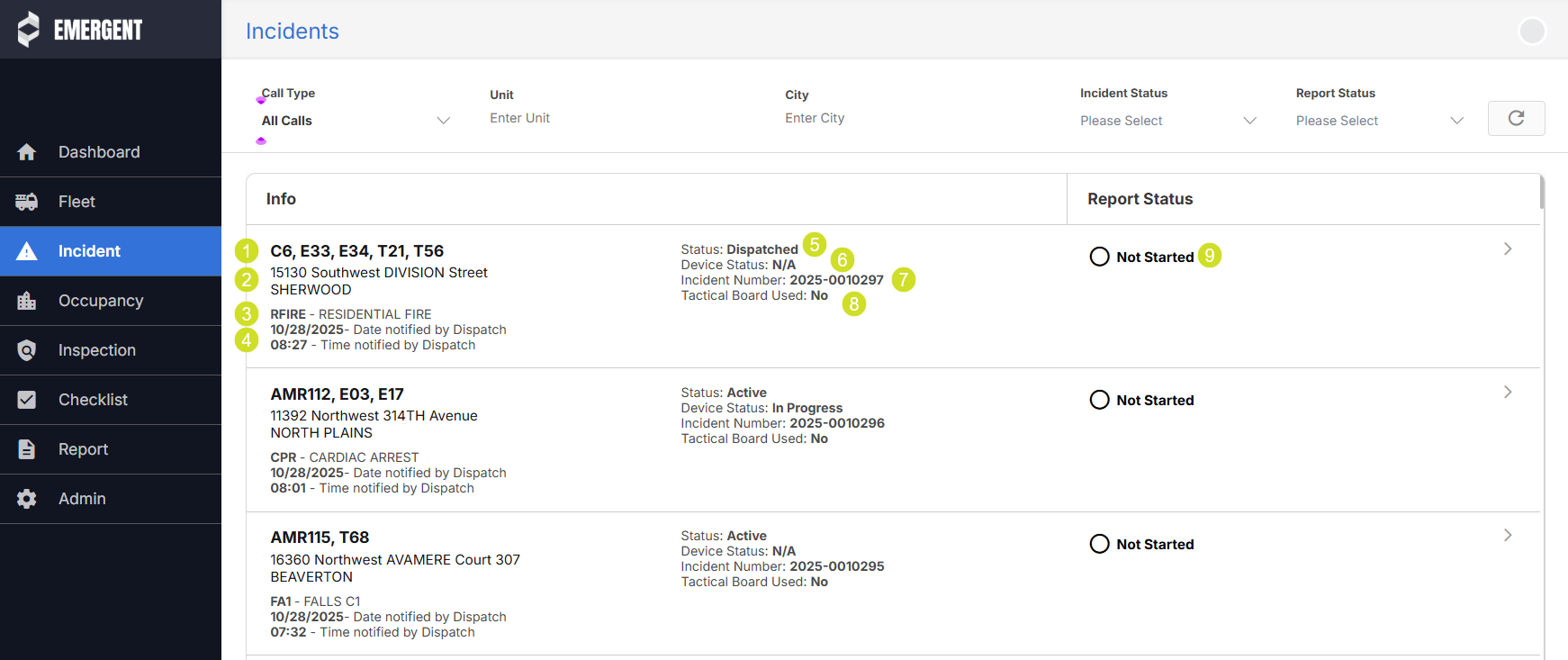
- The units dispatched to the incident.
- The address of the incident's location
- The CAD Code/Description assigned to the incident
- The dispatched date/time of the incident
- The Incident Status
- The Device Status - indicates if the incident report was started on the iPad
- The Incident Number
- If the Tactical Board was used on the incident
- The Report Status
When you first come to the incident list, it will load the first 100 records that meet your filter criteria, however as you scroll down the list, incidents will continue to load. Currently there is no limit as to the number of incidents that can be viewed in portal.
TIP: To search the incident list for incidents based on a field that is not in the filter options, you can use the browsers built in search capabilities. CTRL+f or CMD+f launches the browsers search. The browsers search however will only search records that have been loaded to the screen. If you need to search beyond the first 100 records, scroll down first, loading more data, and then do the search.
For example, if I need to find an incident that occurred on Northwest 314th Avenue, sometime in the last 2 months, I would scroll down to load the last 2 months worth of data, and then search for "northwest 314th Ave". The browser search is not case sensitive. The search will not eliminate record from the list, but will give you a count as to how many records match your search criteria, and make it easy for you to jump to each record
Was this article helpful?
That’s Great!
Thank you for your feedback
Sorry! We couldn't be helpful
Thank you for your feedback
Feedback sent
We appreciate your effort and will try to fix the article