Configuring Text Replacement
Emergent's iPad App takes advantage of built in Apple capabilities, like the map capabilities, and Dictation. Apple also provides the ability to setup Text Replacement, configuring text that can be input with a few simple keystrokes. This functionality has been used by Inspectors who have Inspection Notes they frequently must enter, Inspectors inputting NFPA Inspection Descriptions since there is no digital connection to that code book, and many users to simply input their user name so they don't have to type their email address in every time (unfortunately, Text Replacement doesn't work for passwords).
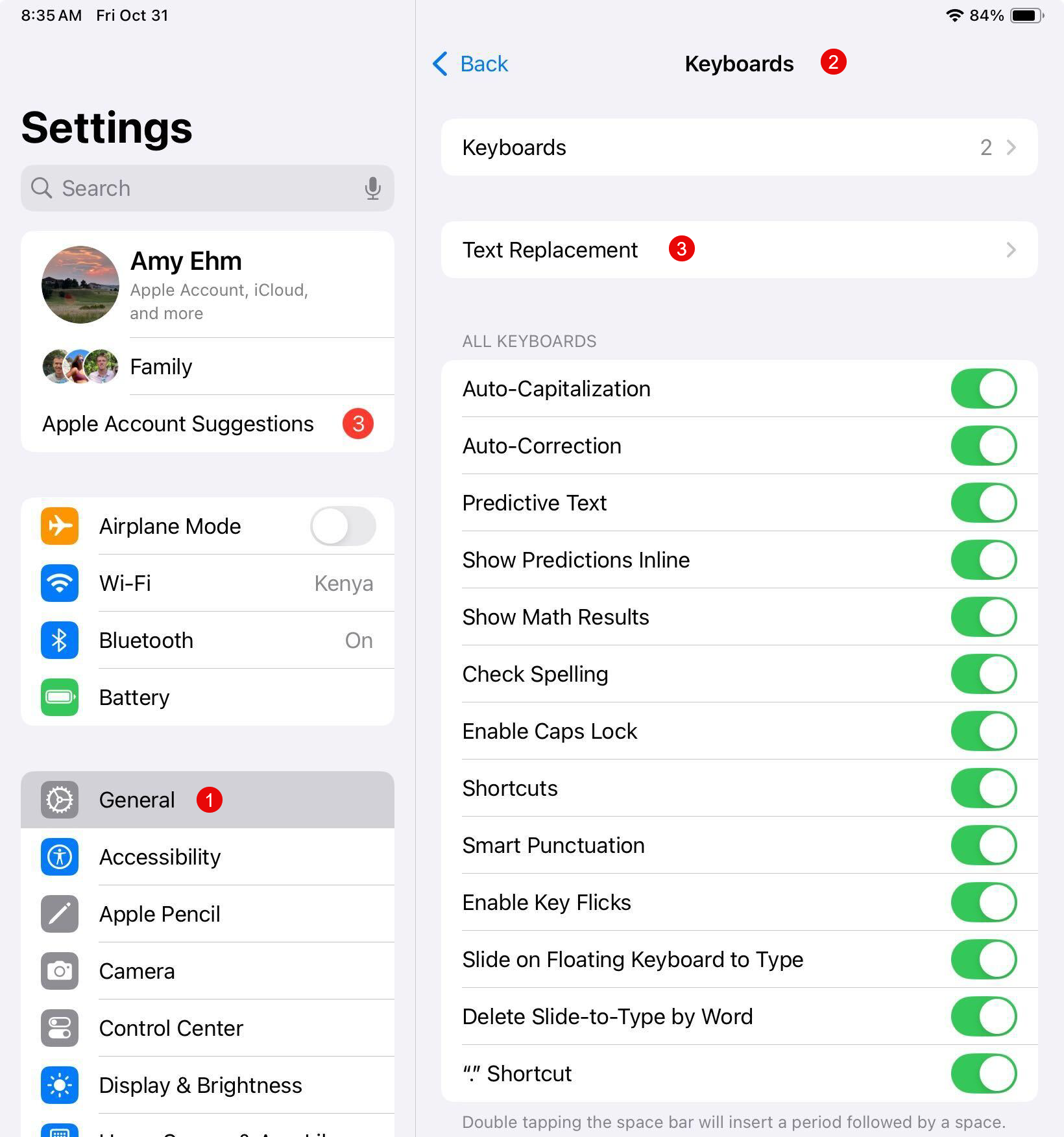
To setup Text Replacement, on the ipad, go to the Settings App (not Emergent). Tap on General, Keyboards and then Text Replacement.
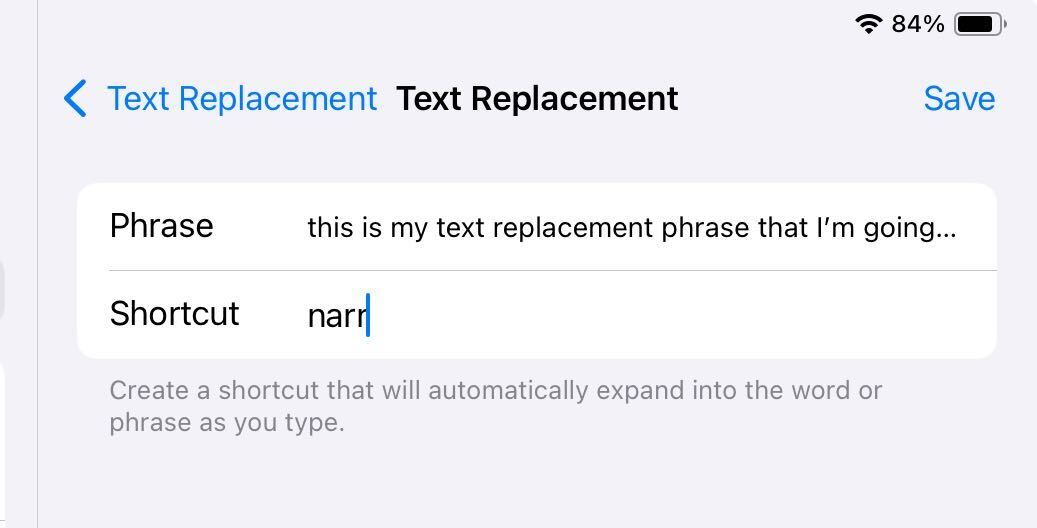
On the Text Replacement screen, input the "Phrase" this is what you want the end result to contain, and the "Shortcut", what you will type into a text box on the iPad.
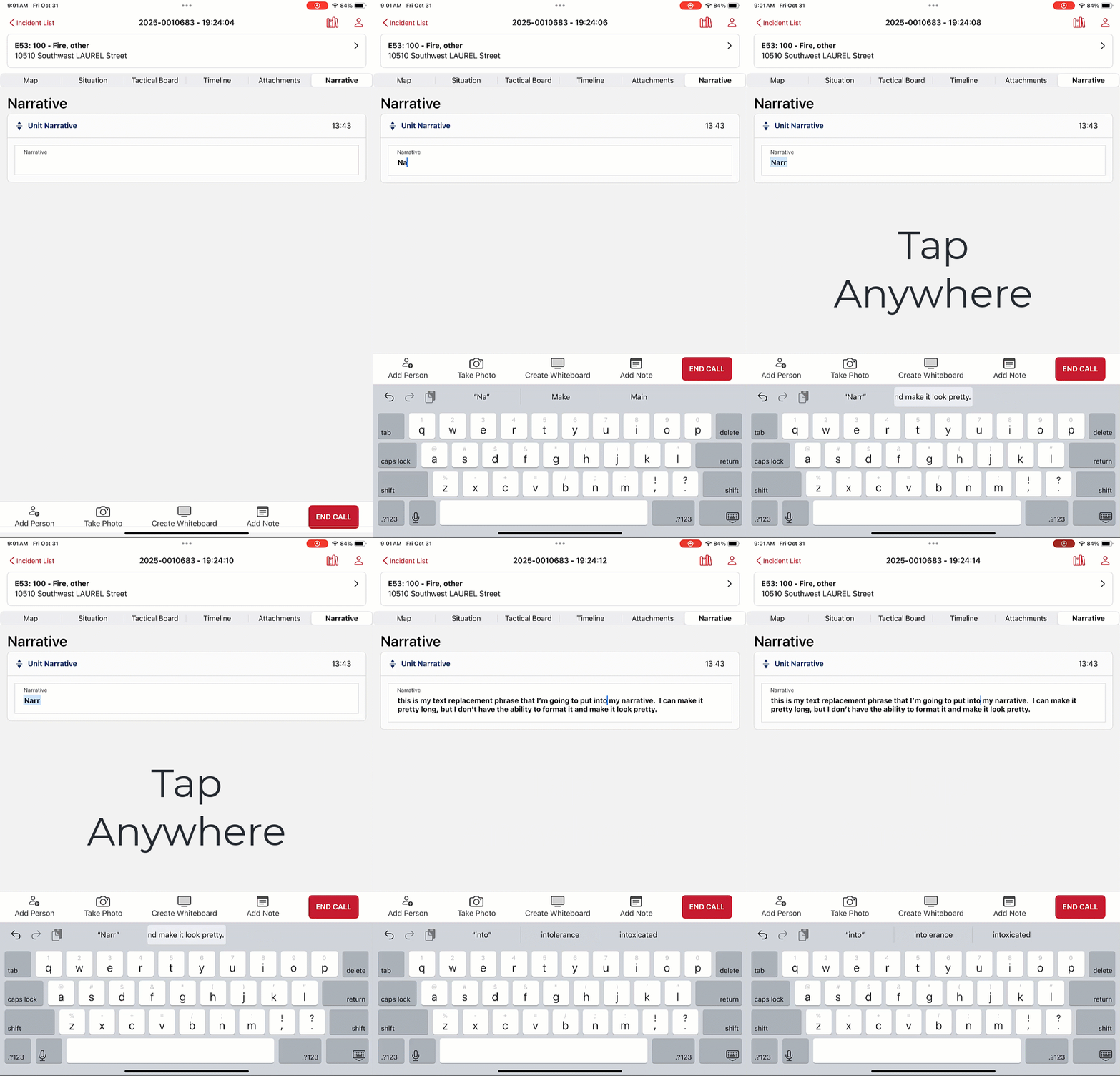
Then when you want to use the shortcut, perhaps in a Unit Narrative, just type the "Shortcut" after typing the shortcut, tap anywhere else on the iPad, and the shortcut will be replaced with your text.
Please note, any Text Replacement configured will be available to all users of the iPad, not just the person logged into Emergent.
Was this article helpful?
That’s Great!
Thank you for your feedback
Sorry! We couldn't be helpful
Thank you for your feedback
Feedback sent
We appreciate your effort and will try to fix the article